
Gallery Block

Use the Gallery block to display multiple photos together. The Gallery block contains individual Image blocks for each image and attractively arranges them.
Inserting
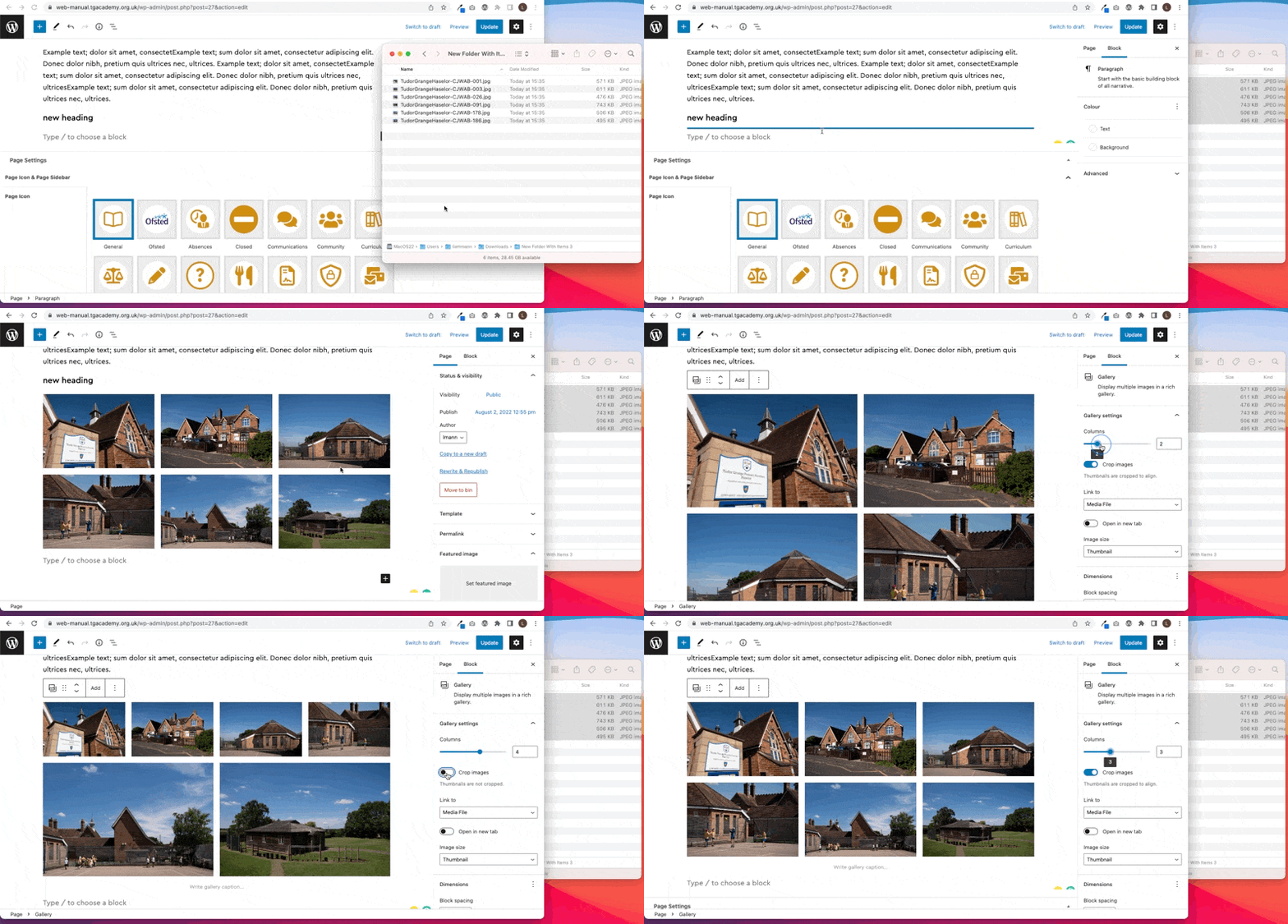
Upload multiple images into an inline popup gallery by selecting multiple files and dropping them into the editor.
Step 1: Open my computer and locate the files to be uploaded
Step 2: Drag the selection of files onto the editor
Step 3: Change the number of columns using the sidebar
Step 4: Use the crop toggle switch to decide if thumbnails need to be cropped to be uniform
Block Toolbar
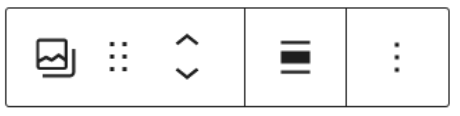
The Gallery block has the following options in its toolbar:
- Change the gallery to another block such as Image, Slideshow, or another gallery format.
- Align left, right, or center (and wide and full widths if supported by the theme.)
- Add to add more images
- More options
Block Sidebar
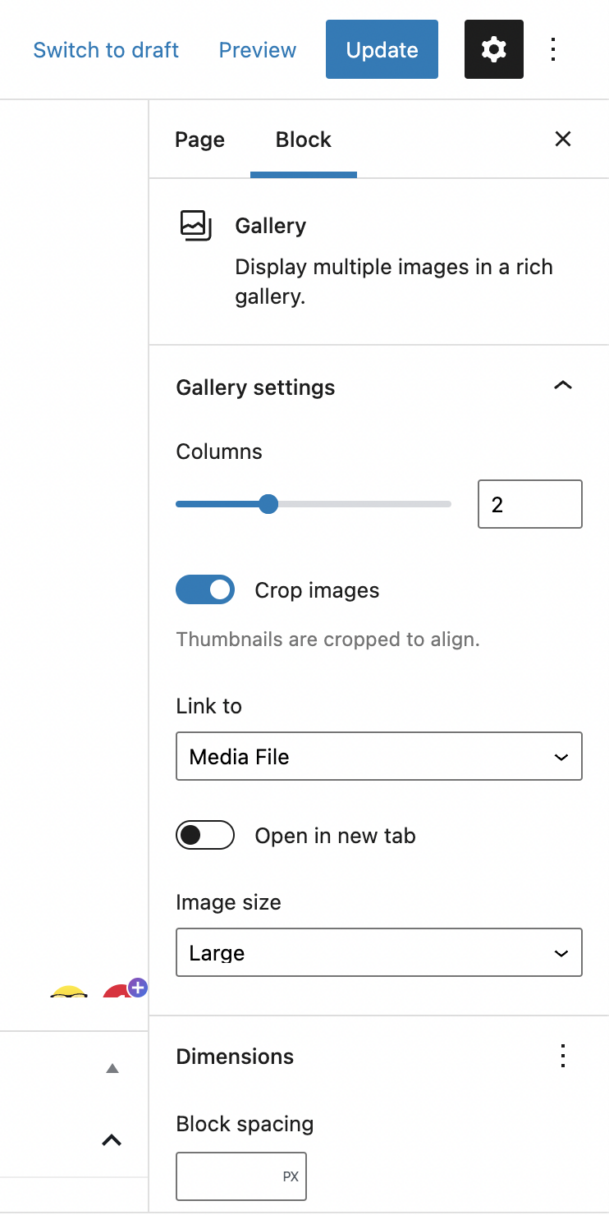
- Columns: You can choose how many columns your Gallery block will have
- Crop Images: Select if images should be cropped to fit and remove any odd spacing