Image Block

Use the Image block to insert an image onto your page or post. Drag and drop images to upload them to your page or post.
Block Toolbar

The icons on the Image block toolbar, starting from the left, are:
- Change block type.
- Drag the block.
- Move it up or down.
- Change alignment (left, center, or right; and wide and full-width options if supported by theme.)
- Add a link to the image.
- Crop and other image editing tools.
- Replace the image with a different image.
- Block options.
Inserting
Adding single photos and images
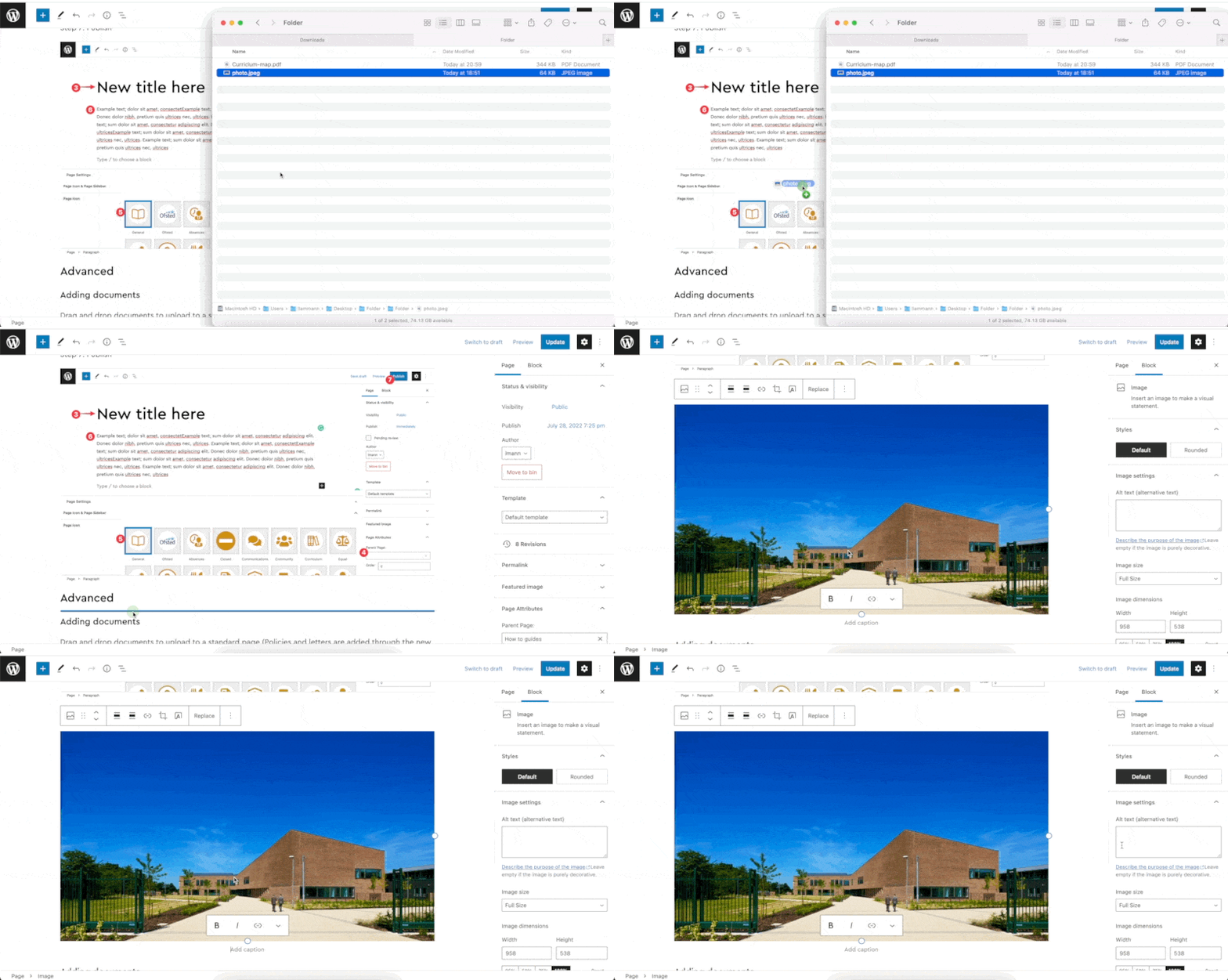
Drag and drop an image to upload to a standard page (The gallery section is updated using the Album new admin dropdown)
Step 1: Open my computer and locate the file to be uploaded
Step 2: Drag and drop the file to upload
Step 3: Add a description of the image in the sidebar
Step 4: Change the alignment in the block toolbar to float the image to right or left of the text
Step 5: Resize the image using the circle buttons on the image edges
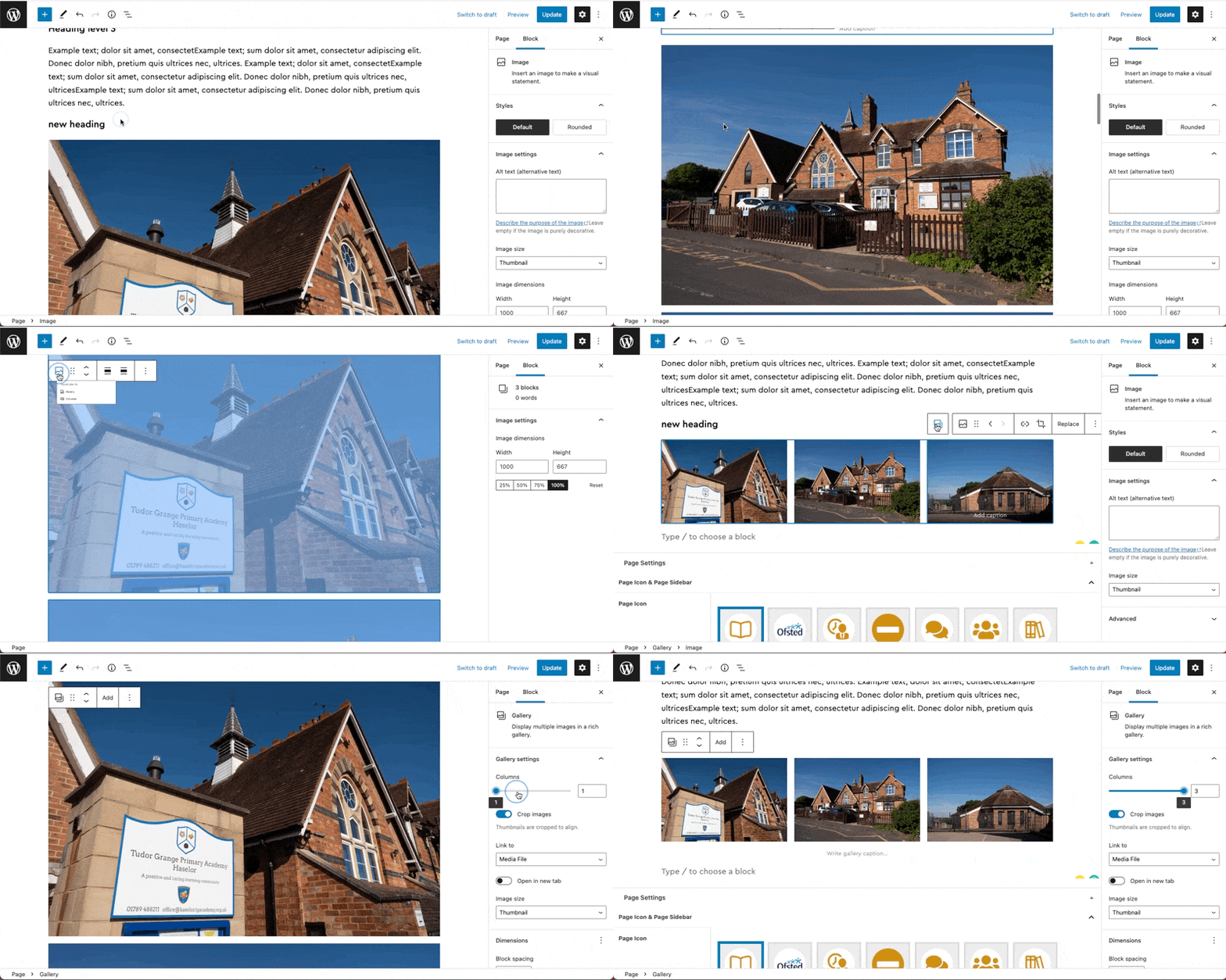
Converting multiple images into a popup inline gallery
You can convert single images into a popup inline gallery using block transformation.
Step 1: Select the image block together that you would like to join into a gallery
Step 2: Click the transform icon and then gallery
Step 3: Alter the columns in the sidebar